
A short guide to the portal
Three sections: what everybody needs, what you need if you keep a project's records current, and what you need if you look after people and projects. Each one stands on its own, so start wherever your job starts. If you would rather be shown than told, the tour walks the same ground on the real pages.
?Take the guided tourGetting in
Everybody · two minutes
The portal holds live project records, so nothing is visible until you sign in. The first screen you meet is the sign-in box; there is no version of the portal you can browse without an account.
- Go to
easynocs.comand sign in with your work email. - If you have never used it before, use Request access on the same screen. That creates the account but does not switch it on.
- An administrator approves the request and chooses which projects you can see. Until that happens you will be told your account is waiting — that is expected, not a fault.
What the tools are for
Everybody · the home page in one screen
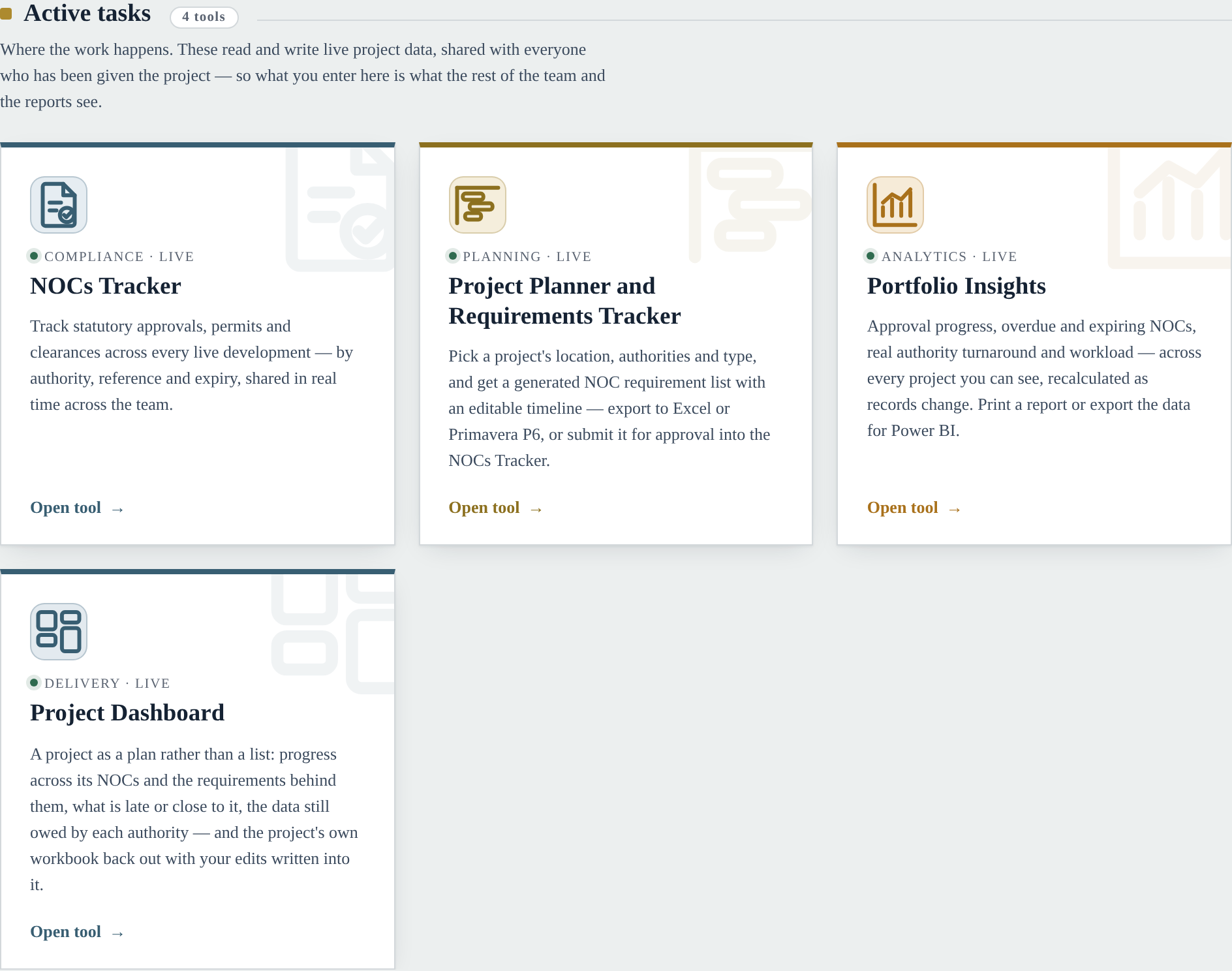
The home page splits in two. Active tasks are the tools that hold live project records. Knowledge & references is material about what the authorities require — no project data in it at all, so it is safe to read through before an application is raised.
| Tool | Use it when |
|---|---|
| NOC Tracker | You need to find, read or update a specific approval. This is the one most people use all day. |
| Project Dashboard | You want to know how a project is doing overall — what is late, what is coming, what the authorities still owe you. |
| Project Planner | You are starting a project and need the requirement list and a programme for it. |
| Portfolio Insights | You need numbers across every project — approval rates, authority turnaround, workload — usually for a report. |
| Authorities hubs & checklists | You need to know what a particular authority asks for before you submit. |
Finding an approval
The fastest routes to one record
There are three ways in, and the right one depends on what you already know.
If you know roughly what you are looking for
Use the search box at the top of the NOC Tracker. It looks across every project you can see — not just the one you happen to be in — and it searches references, authorities, NOC names and the remarks.

If you know the state it is in
The tiles across the top are filters. Click Expiring / Overdue and the projects below narrow to just those NOCs. Click it again to clear it.

Two of these are about your programme rather than the approval itself:
- Submission due — the planned submission date has arrived or passed and nothing has gone in yet.
- Approval due — it was submitted and should have come back by now. “5 late” means five are already past the date.
If you know the project
Open the project card and use the toolbar: search within the project, filter by authority, sort, and narrow with the status chips. The filters stack, so you can ask for “everything from Civil Defence that is expiring”.

Reading a record
What the columns are telling you
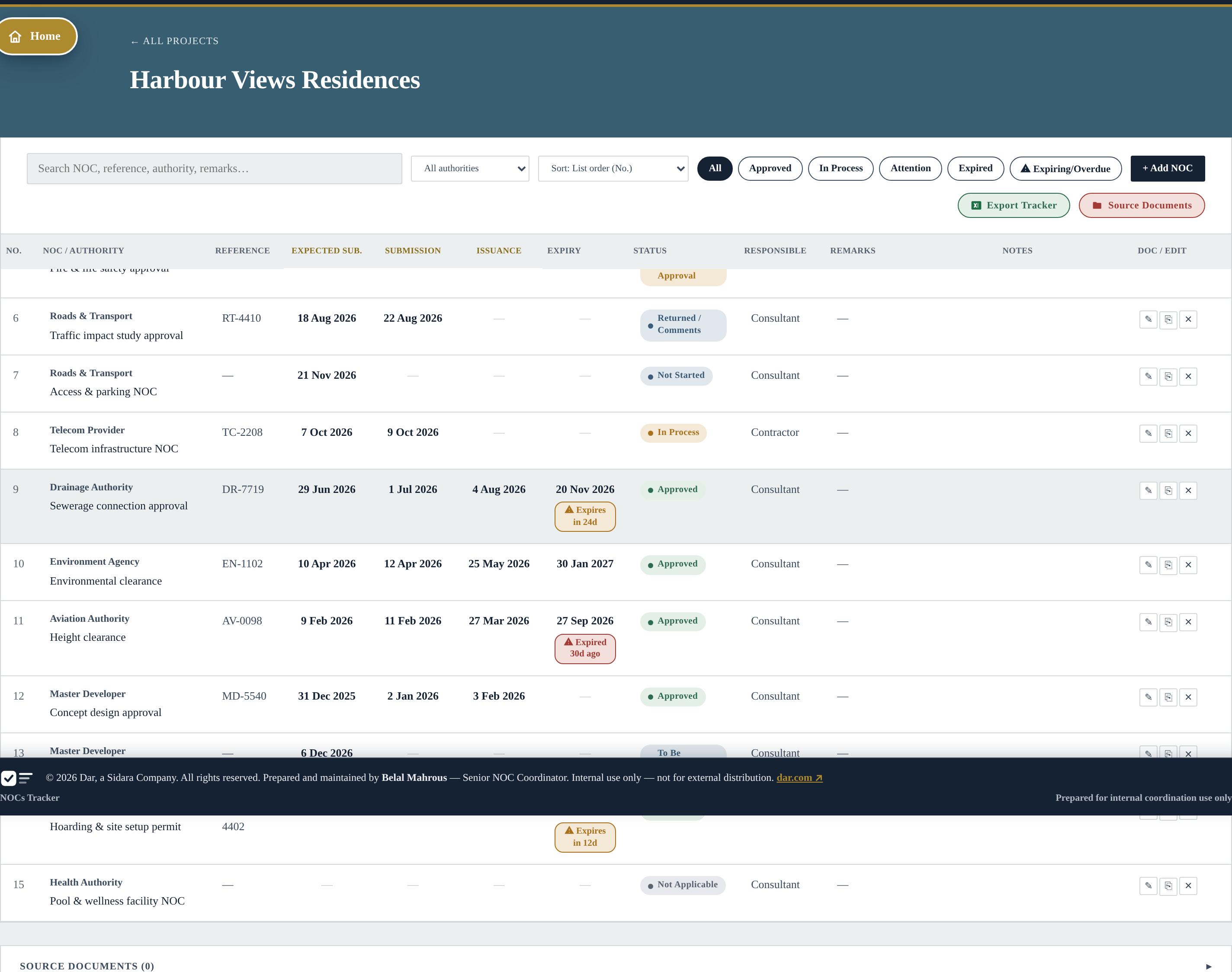
The columns come in two pairs, and the gap between them is the whole point:
| Column | What it is |
|---|---|
| Expected submission | Plan. When you intended to submit. |
| Submission | Reality. When it actually went in. Empty means it has not. |
| Expected approval | Plan. When you expected it back. |
| Issuance | Reality. When the authority actually issued it. |
| Expiry | When the approval stops being valid. Blank means it does not expire. |
| Reference | The authority's own number for it — what you quote when you chase. |
Comparing a planned date against an empty actual date is how the portal knows something is late. That is where every “due” and “overdue” figure in the portal comes from — so a record with no planned dates cannot tell you it is slipping.
Seeing a project as a plan
The Project Dashboard
The Tracker answers “what is the state of this approval”. The Project Dashboard answers “how is this project doing”. Same records, different question.
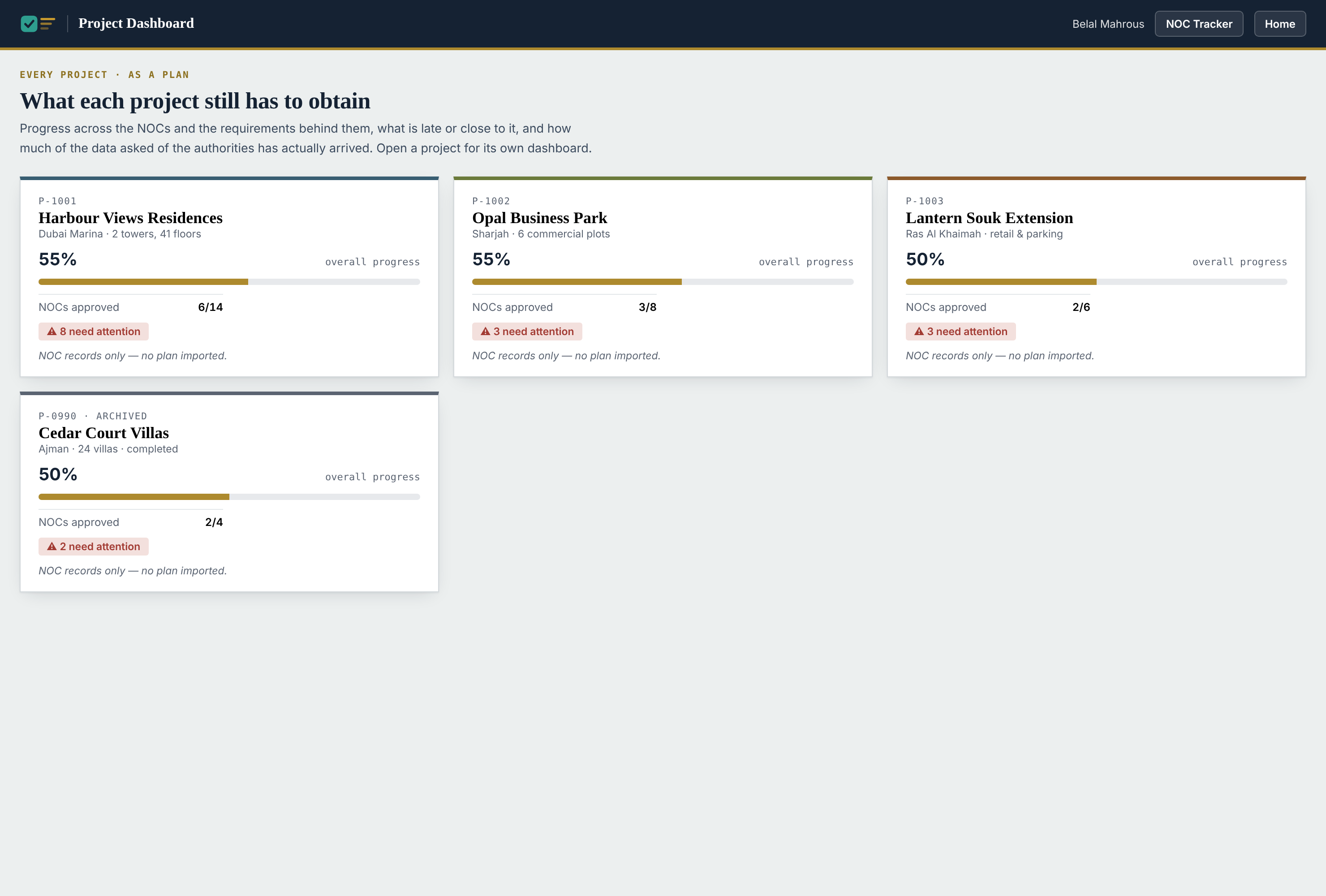
Open a project and the top row gives you the headline numbers. A tile only appears when the project has something to put in it, so an empty tile is never shown just to fill the row.

Below that, two views worth knowing:
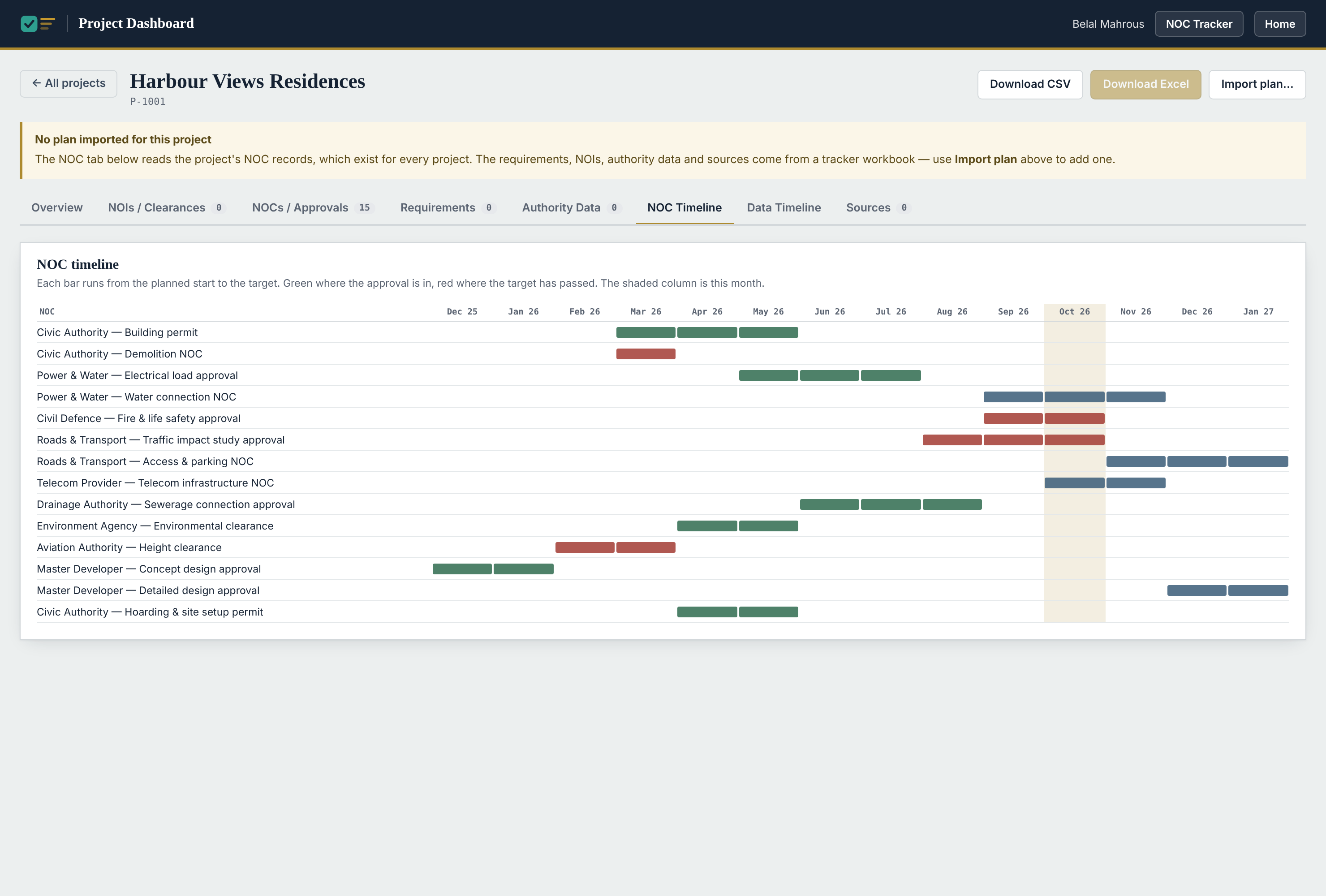
- Where the work lands — each authority against each month. A dark cell is a month with a lot falling due on one authority, which is usually a month worth re-planning.
- Needs action now and Coming up — overdue targets and lapsed approvals in the first, things about to fall due in the second. Click any line to open that record.
Updating a NOC
Only on projects you have been given edit access to
If you can edit a project, the rows carry three small buttons on the right and an + Add NOC button sits in the toolbar. If you cannot see them, you have view access to that project — which is a setting, not a fault.
| Button | What it does |
|---|---|
| ✎ Edit | Opens the record to change dates, status, reference or remarks. |
| ⎘ Duplicate | Copies the row with its name and authority, leaving the dates blank. The quickest way to raise a renewal. |
| ✕ Delete | Removes the row. Use this for something added in error — not for an approval that has lapsed, which is part of the record. |
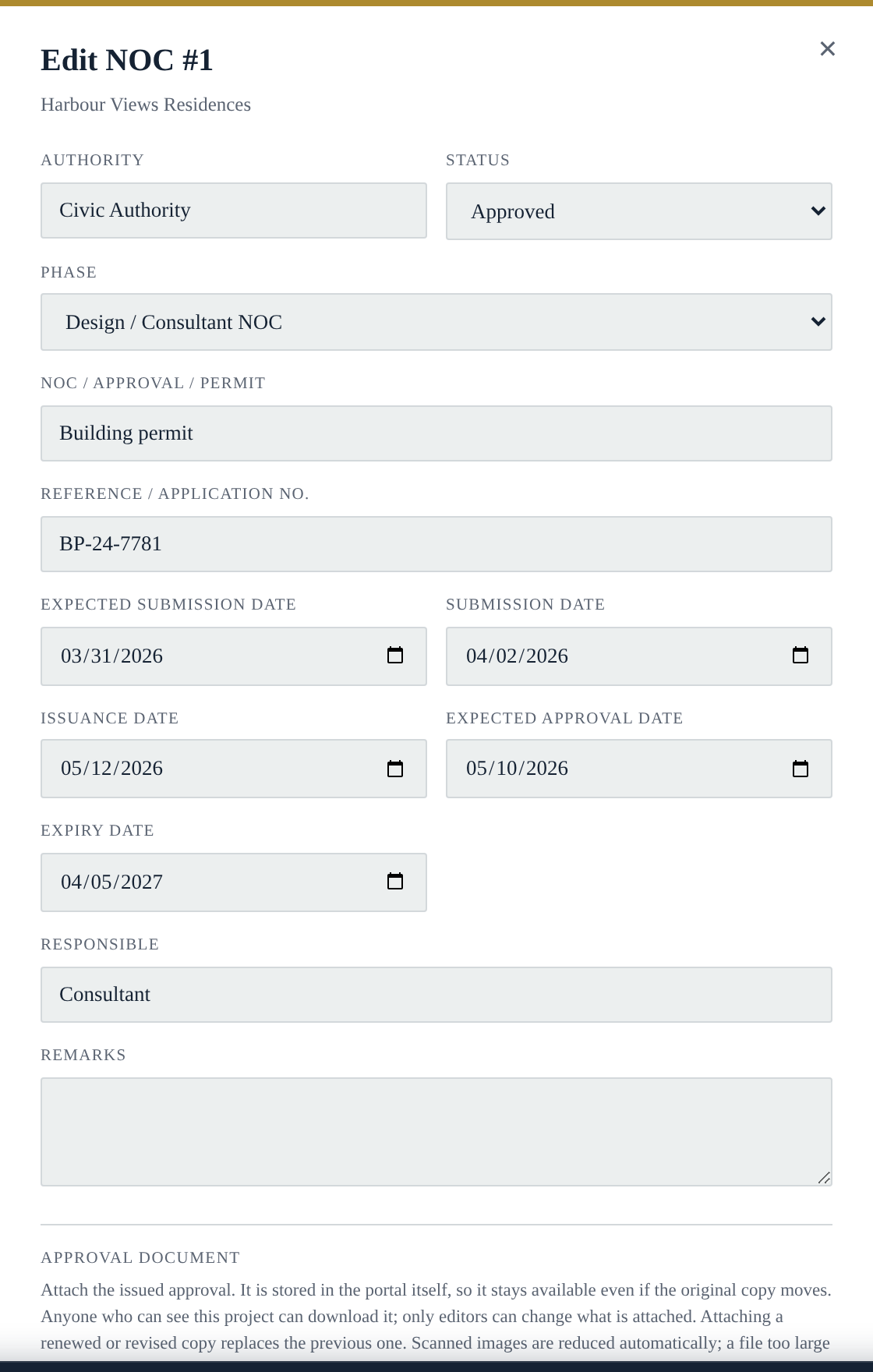
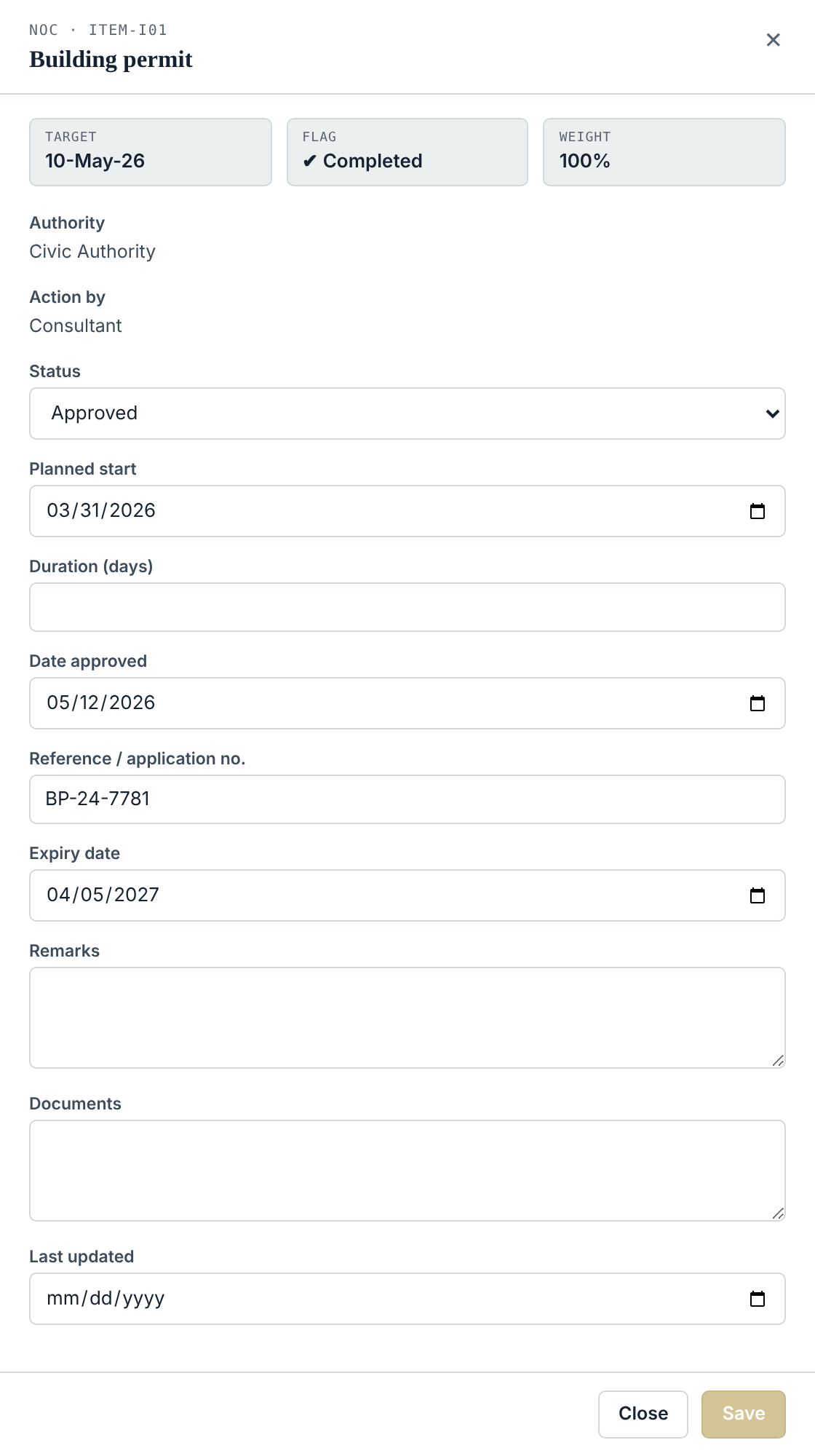
You can also edit from the Project Dashboard: click any row and a panel opens at the side, with the facts on the left of the change and the fields you can edit below them.
Which date goes where
The single most common mistake
Four date fields, and putting a value in the wrong one quietly breaks every late-and-overdue figure in the portal. The rule is simple: expected dates are what you intended, the other two are what happened.
| When you… | Fill in |
|---|---|
| Plan the work | Expected submission and expected approval. Do this even if the dates are rough — a record with no planned dates can never report itself late. |
| Send the application | Submission date. Leave expected submission exactly as it was, even if you were late. Overwriting it erases the slippage. |
| Get the approval back | Issuance date, the reference number, and the expiry date if it has one. Set the status to Approved. |
| Get comments back | Set the status to Returned / Comments and note what was asked for in the remarks. Leave the dates alone. |
Renewals and expiry
An expired approval is not a finished one. The portal treats a lapsed NOC as outstanding work: it stops counting towards progress and appears under “needs action now” beside the overdue items, because both mean somebody has to act.
To raise a renewal:
- Find the expiring NOC — the Expiring / Overdue tile collects them.
- Use Duplicate on that row. You get the same authority and NOC name with the dates cleared.
- Fill in the new expected submission and approval dates and save.
- Leave the old row alone. It is the record of the approval you held, and deleting it loses the history.
Getting data out
| You want | Where |
|---|---|
| One project's tracker | Export Tracker in the project toolbar. You get exactly what you are looking at, filters included. |
| Every project at once | Export all to Excel on the Tracker dashboard. |
| Numbers for a report | Portfolio Insights — a printable report, or the data as Excel or CSV for Power BI. |
| The project's own workbook back | Download Excel on the Project Dashboard. This returns the original file with only your changed cells written into it — the same workbook, not a new one that looks similar. |
People and access
The Admin panel, reached from the Tracker
People are listed in four groups — administrators, active, trial and revoked — collapsed by default, because the list grows and an expanded list of everyone is unreadable. Search, sort, or filter by “access to” a particular project to find somebody.
Approving somebody new
- Find them in the list — a new request arrives as a pending account.
- Open their row and set their status to approved.
- Give them projects. An approved account with no projects can sign in and see nothing at all, which is the most common “it is broken” report there is.
- Choose viewer or editor per project. Viewers read; editors change records.
Projects and pages
Adding a project
The + Add project tile sits at the end of the project grid. You can also copy the authority and NOC list from an existing project: everything else — status, dates, reference, remarks — starts blank and every item begins at Not Started. That is the quickest way to start a new project from a checklist that has already proved itself.
Archiving rather than deleting
A finished project should be archived, not deleted. It drops out of the active list and the headline counts but stays on record and stays searchable. Deleting removes the history for everybody.
Page visibility and appearance
Which pages appear on the home page is set in the admin panel, so a tool can be built and held back until it is ready. Appearance — colours, fonts, spacing — is set once for everybody from the home page, so the portal looks the same to the whole team.
Importing a plan
A project's plan — its requirement list, notices, authority data requests, contacts and sources — comes from a tracker workbook page. On the Project Dashboard, open the project and use Import plan.
- The file carries everything needed inside it, so nothing is retyped.
- The plan's NOCs become that project's NOC Tracker records, so they turn up in the Tracker, in Insights and in the due tiles like any other.
- Importing again replaces the plan and clears edits made on the dashboard. Records the Tracker already held that did not come from a plan are left alone.
What each status means
Reference · and which tile it lands in
| Status | Counts as | Use it when |
|---|---|---|
| Approved | Approved / Valid | The approval is in hand and in date. |
| Approved with Comments | Approved / Valid | Issued, with conditions to carry out. |
| Valid/Active | Approved / Valid | In force, where there is no single issuance date. |
| Submitted - Awaiting Approval | In Process | It is with the authority and the clock is running. |
| In Process | In Process | Being worked on, either side. |
| Returned / Comments | Needs Attention | Came back with queries. Note them in the remarks. |
| Not Started | Needs Attention | Known about, not begun. |
| To Be Confirmed | Needs Attention | You are not yet sure it is required, or by whom. |
| Not Yet Due | In Process | Deliberately not started — its time has not come. |
| Expired | Expired | Lapsed and not renewed. |
| Not Applicable | Counted nowhere | Ruled out for this project. Left out of progress entirely, so it neither helps nor hurts the percentage. |
An approval whose expiry date has passed is treated as expired whatever its status still says — the status stays as an honest record of what happened, but a lapsed NOC is not protecting the work today and the portal counts it accordingly.
Common questions
I signed in but there is nothing there
Your account is approved but has no projects on it. Ask an administrator to add you to the projects you work on.
A colleague can see a project and I cannot
Access is given per project. Nothing is wrong — you need adding to it.
I cannot edit, and the Add NOC button is missing
You have viewer access to that project. An administrator can change it to editor.
I changed something and want it back
In the Tracker there is no undo — retype the previous value. On the Project Dashboard, a row imported with a plan keeps its original values and offers Revert to original.
The numbers on the Tracker and the Dashboard look different
They answer different questions. The Tracker counts records by status. The Dashboard weighs how far along each one is and reads every date against today, so a half-finished project shows as part-way rather than as nothing. Both are counting the same records.
Something looks wrong in the data
Fix it if it is your project to fix, and tell the coordinator if it is not. Everything is shared and live, so a correction helps everybody at once.
?Take the tour again